


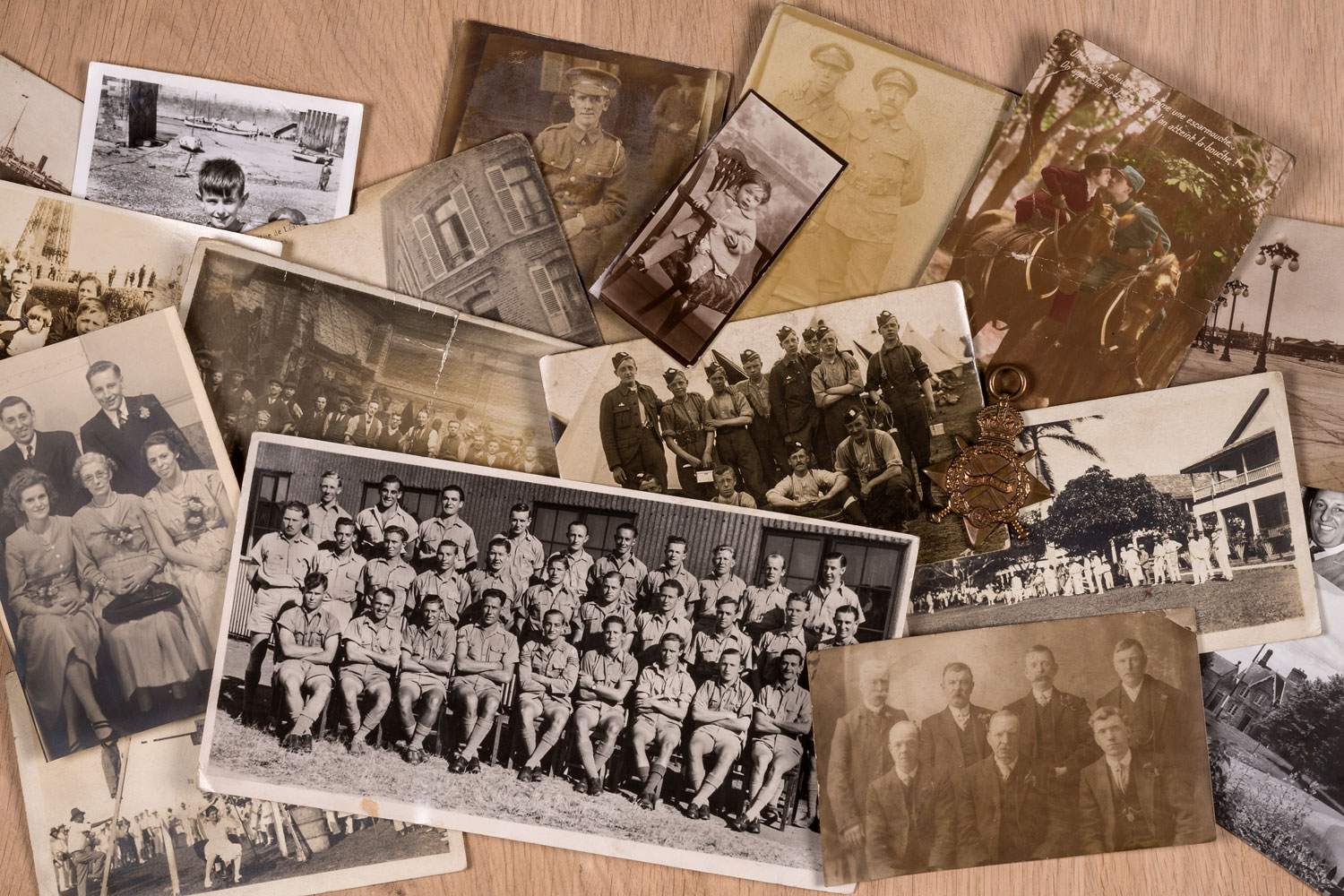
So you’ve found a box of old photos stuffed in a closet, and they’re pretty rough around the edges. Faded, scratched, maybe water-damaged. The good news? You can restore old photos without being a Photoshop expert. Modern AI tools can do most of the heavy lifting for you, and the process is faster and easier than you’d think.
The Fastest Way to Restore Old Photos: AI Tools
If you want to restore old photos quickly, AI-powered restoration apps are your best bet. These tools work by automatically scanning your image and fixing common damage in seconds. You upload a photo, the software identifies scratches, fading, blur, and color loss, then it rebuilds those areas using artificial intelligence.
Here’s what AI restoration can handle:
- Removing visible scratches and dents from the photo surface
- Bringing color back to black-and-white or heavily faded images
- Sharpening blurry areas and boosting overall clarity
- Fixing tears and missing sections (to a degree)
- Enhancing resolution so the image looks crisper on screen or in print
The best part? Free AI restoration apps are genuinely effective for mild to moderate damage. If your photo has fading or light scratching, a free tool will often give you results that look professional. For heavily damaged photos, you might need a paid upgrade or manual editing, but starting with a free tool is smart.
Step-by-Step: Using an AI Photo Restoration App
The process is simple enough that anyone can do it. Here’s how to get started:
1. Choose your tool. Multiple free web-based AI tools exist that require nothing but a web browser. Just search for “AI photo restoration” and pick one with good reviews. No software to download or accounts to manage.
2. Upload your photo. Click the upload button and select your damaged image from your computer or phone. The file doesn’t need to be huge, though larger files often give better results.
3. Let the AI work. Hit the restore button and wait. Most tools process your photo in 5-30 seconds. You’ll see a progress bar while the algorithm scans and rebuilds the image.
4. Compare before and after. Once processing finishes, the tool shows you a side-by-side view. You can see exactly what changed. Most tools let you download the restored version immediately.
5. Download and save. Save the restored image to your computer. Many apps also let you email it to yourself or share it directly.
The automation handles nearly all the work. Your job is just uploading and clicking a button. It’s genuinely that simple for most photos.
When to Use Desktop Software Instead
Free web-based AI tools work great for quick fixes, but sometimes you need more control. If you want to manually touch up specific areas, blend repairs, or use advanced color correction, desktop software gives you that power.
Desktop alternatives let you zoom in on damage, adjust settings per area, and make precise edits by hand. The trade-off is that they take longer and require you to learn the software. But if your photos are irreplaceable heirlooms or you’re working with extremely delicate damage, that hands-on approach pays off.
Most desktop software is designed for users with at least some editing experience. If you’re new to photo editing, start with the AI tools first. Master those, and if you hit a limitation, then explore desktop options.
Restoring Black and White Photos to Color
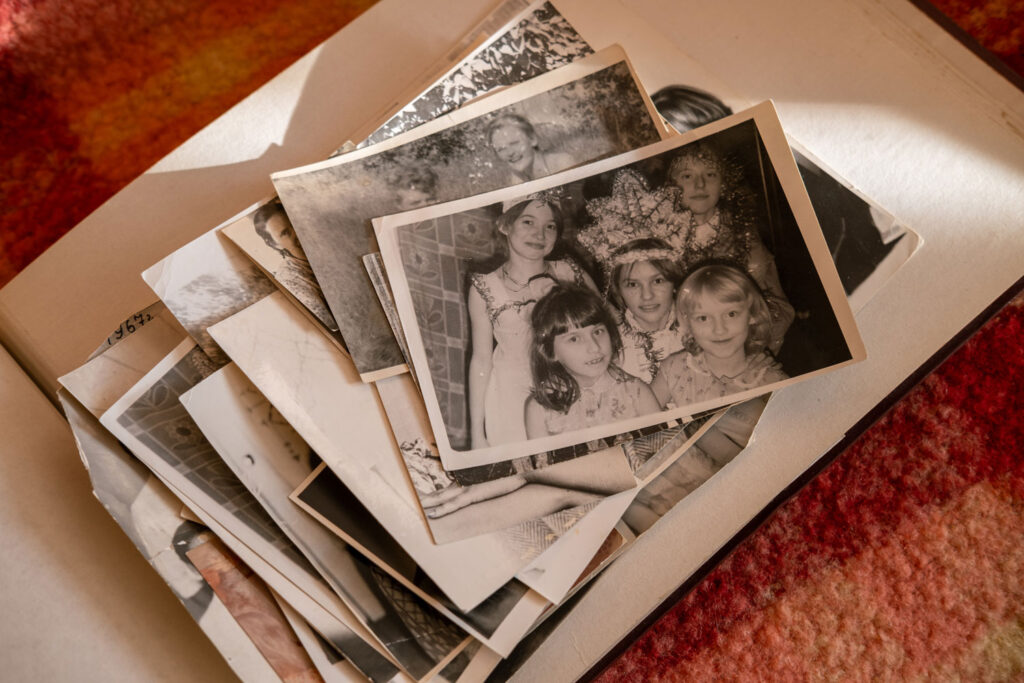
One of the coolest things AI restoration can do is colorize black-and-white photos. These tools analyze the image, recognize objects and faces, and intelligently guess what colors they should be based on patterns learned from millions of color photos.
The results aren’t always perfect. Clothing colors might be off, or skin tones might need adjustment. But as a starting point, AI colorization is stunning. You get a photo that’s been lost to time suddenly brought back to life in vibrant color.
If you want a human eye to fine-tune the colors afterward, Mountain View Photo, LLC offers professional photo restoration services that combine AI efficiency with expert craftsmanship. Their team can take an AI-restored image and polish it to perfection if needed.
Choosing the Right Restoration Method Based on Damage
Not all photos need the same treatment. Match your approach to what you’re dealing with:
- Mild fading: Free AI tool. You’ll get great results in minutes.
- Scratches and small tears: Free or paid AI tool. Most handle this beautifully.
- Severe water damage: AI might need help. Desktop software or professional restoration works better.
- Extreme blur or missing sections: AI does its best, but you might want professional hands involved.
- Irreplaceable family heirloom: Professional restoration guarantees quality and peace of mind.
Start by running a free tool on one photo. If you love the results, use it on the rest. If the damage is too severe, upgrade to paid features or consider professional help.
Tips for Getting the Best Results
A few small things make a big difference when you restore old photos:
- Scan at high resolution if you’re digitizing a physical photo. Higher resolution gives AI more detail to work with.
- Clean the scanner before scanning. Dust can create artifacts the AI has to fix.
- Upload the clearest scan you have. If multiple copies exist, choose the best one.
- Don’t over-process. Run restoration once, not twice. Each pass can introduce small errors.
- Save the original scan. Keep the unedited version as a backup.
These small steps help AI do its job cleanly and reduce the chance of weird artifacts or unnatural-looking fixes.
When Professional Restoration Makes Sense
DIY restoration works for most photos. But some situations call for a professional. If your photo is badly damaged, incredibly important to your family, or you want museum-quality results, professional restoration is worth exploring. Experts have access to advanced tools, can fix damage that AI misses, and can hand-blend colors and repairs in ways that keep photos looking natural.
Whether you go the free AI route or invest in professional work, the goal is the same: bringing your precious memories back to life. If you’d like to discuss your specific photos, Mountain View Photo, LLC is happy to review your images and explain what’s possible.
People Also Ask
Can you really restore old photos for free?
Yes. Free AI restoration tools work well for mild to moderate damage like fading, light scratches, and minor blur. They’re genuinely effective starting points. If damage is severe, you might want paid tools or professional help, but free options should be your first step.
How long does photo restoration take?
With AI tools, most photos are done in 30 seconds to 2 minutes. Desktop software can take 15 minutes to hours depending on damage level and how much manual work you do. Professional restoration depends on the photo and the studio, but expect a turnaround of days to weeks.
Will restored photos look natural?
Good restoration looks natural. Free AI tools handle obvious damage well, but sometimes colors or sharpness can look slightly off. The better your original photo, the more natural the result. Heavily damaged photos might show subtle AI artifacts, but they’re usually better than the original.
Should I edit photos after AI restoration?
You can, but you don’t have to. AI restoration is complete as-is. Minor adjustments to brightness or contrast can help, but usually the restored photo looks good immediately. Avoid heavy editing after restoration, which can undo the AI’s work or introduce new problems.